NectarLink: Your Android Phone and Windows PC, Working as One
Luca Tariciotti 6 min read
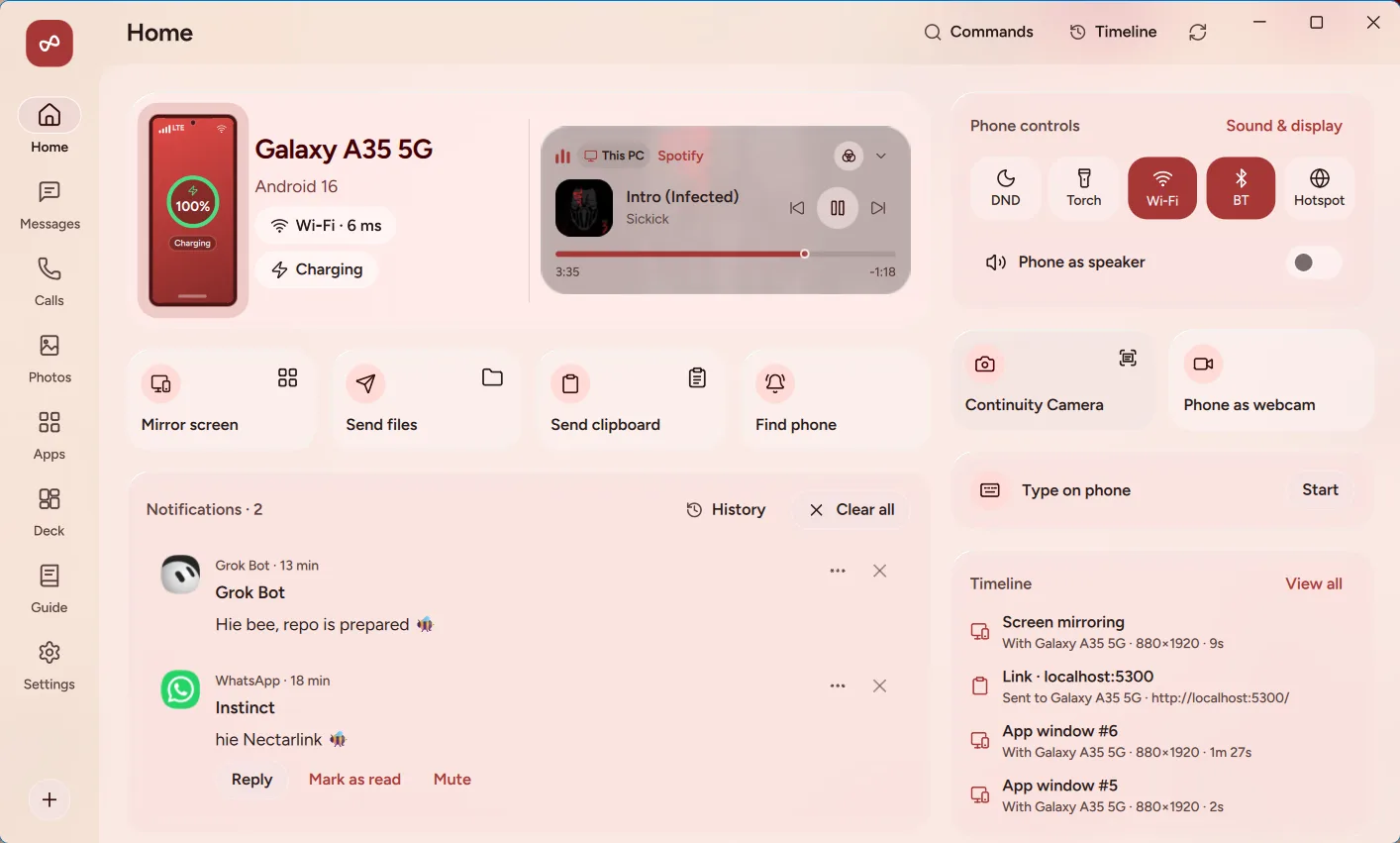
NectarLink combines multiple tools into a single app. It supports notifications, messaging, and file sharing across devices. Ideal for those who value privacy.
NectarLink is the kind of project that makes your phone and PC feel like one machine. If you've ever had to switch between Phone Link for notifications, KDE Connect for clipboard, and LocalSend for files, you know why this one feels different. NectarLink replaces all of that with a single app on each side, plus a lot more. It's designed to feel like your phone and your PC are actually one device.
The project was built by Bee, who runs the open-source social network at Threads. His motivation came from frustration. He wanted one app that handled everything his other tools did, and he built it. The result is a local-first, end-to-end encrypted system with no account and no cloud. If you're looking for a way to keep your personal data completely private while still having smooth, cross-platform access, NectarLink is worth a look.
This article walks you through what NectarLink does, how it works, how to install and use it, and who it's best for. You'll find practical steps, a clear explanation of its architecture, and a friendly overview of the themes available.
What NectarLink Does
NectarLink covers what three other tools did for you, plus a lot more. On the PC side, you get notifications with replies, Live Updates for timers and progress, and one-time codes. On your phone, you get messages from SMS, MMS, RCS, WhatsApp, Telegram, Signal, and more, all in one inbox. You can also make calls on the PC, see who's calling, answer, decline, or hang up, and browse recent calls.
It moves things between devices. Clipboard sync works both ways, with optional encryption for your history so passwords and one-time codes stay private. Files and folders transfer at Wi-Fi speed, with resume after a dropped connection. Photos from your phone appear on the PC. Handoff lets you open links, maps, and videos on the other device at the same timestamp.
You can also use your phone from the PC. Screen mirroring works at up to 60 frames per second with the phone's sound. You can open any phone app in its own window on the PC, with its own taskbar icon. Type on the phone with the PC keyboard, without mirroring. Phone controls on the PC include Do Not Disturb, ringer, volume, flashlight, brightness, Wi-Fi, and Bluetooth.
Using your PC from the phone is just as easy. You get a touchpad, air mouse, keyboard, voice typing, and presentation remote. Deck is a Stream Deck style grid of buttons for the PC, with live volume and mute. You can lock, sleep, and wake the PC from your phone.
The camera and sound features are also notable. The phone can act as a webcam in Zoom, Teams, Meet, OBS, and the Camera app. Continuity Camera lets you take a photo or scan a document with the phone, and it appears on the PC's clipboard. The phone can also serve as a speaker for the PC and a voice recorder that saves straight to the PC.
How It Works
NectarLink uses a simple but powerful architecture. The Android app is written in Kotlin and Compose, while the Windows app is built with Qt Quick and Rust, using UniFFI to bridge the two. The core logic lives in the nectarlink-core component, which handles pairing, sessions, storage, and features. Everything talks over QUIC with TLS 1.3, which is end-to-end encrypted.
Device keys are exchanged when you pair, and they're protected by Windows DPAPI and the Android Keystore. This means your data stays secure even if the device itself is compromised. The only internet traffic is the update check against GitHub Releases, which you can turn off. If you do enable it, Connect over mobile data relays encrypted traffic it can't read.
The architecture is also designed for local-first operation. Devices talk directly over your network or a USB cable. Nothing goes through a server, and there's no account. This means your data is never stored on a central server, and you have full control over what gets shared. Each paired device has its own feature switches, so you can decide what's exposed.
Installing and Using NectarLink
NectarLink supports Windows, Linux, and Android. The setup process is straightforward. You install NectarLink on both your PC and your phone. On the PC, the setup walkthrough shows a QR code. Scan it with your phone, or pick the PC from the phone's list of nearby devices and compare a 6-digit code. A USB cable works too.
After pairing, you allow what you want to share. Every feature has its own switch per device, and the sensitive ones are off until you turn them on. Optional: set up Wireless debugging once in the phone app for the features Android reserves for privileged apps. No root, nothing else to install.
The user guide covers every step and feature in detail. You can find it at the project's documentation. If you run into issues, the troubleshooting guide has tips for common problems, including how to handle Google Play Protect blocks in India and many other countries.
Who Is NectarLink For?
NectarLink is for people who want a unified experience across their Android phone and Windows PC. It's ideal for those who dislike managing multiple tools for notifications, messages, clipboard, and file transfers. If you value privacy and local-first architecture, you'll likely appreciate the end-to-end encryption. The project also appeals to users who want to use their phone as a webcam, speaker, or recording device on the PC.
The themes available are Hive, Bloom, Glass, and Graphite, each in light and dark. If you want a living honeycomb, Hive is the exclusive theme. If you prefer soft and colorful, Bloom is your choice. If you like translucent cards over the Windows backdrop, Glass is the option. If you like ink on paper, Graphite is the look. All are available in both modes, so you can pick the aesthetic that fits your workflow.
The project is free and open source. You can find it on GitHub. The apps update themselves from GitHub Releases and check every download against its SHA-256 sums. You can also install from a single command on Linux, or download a .deb, .rpm, AppImage, or .tar.gz file. The pricing is the same across all platforms, so there's no variation in cost.
FAQ
How do I pair my phone to NectarLink?
You open the NectarLink app on your phone, scan a QR code shown on the PC screen, or select your PC from the list of nearby devices to compare a 6-digit code. A USB cable also works.
Is NectarLink encrypted?
Yes. Every connection is QUIC with TLS 1.3, authenticated with device keys exchanged when you pair. Keys are protected by Windows DPAPI and the Android Keystore.
How do I install NectarLink on Linux?
From the next release, one command installs NectarLink with everything it needs, and shows each step as it goes. Use: curl -fsSL https://github.com/thtbee/nectarlink/releases/latest/download/install.sh | sh.
Conclusion
NectarLink is a practical solution for anyone who wants their Android phone and Windows PC to feel like one device. It combines local-first architecture, end-to-end encryption, and a single app on each side. If you're tired of juggling multiple tools for notifications, messages, clipboard, and files, NectarLink is the answer. Start by installing it on both your phone and PC, and you'll experience a new level of cross-platform connectivity.